
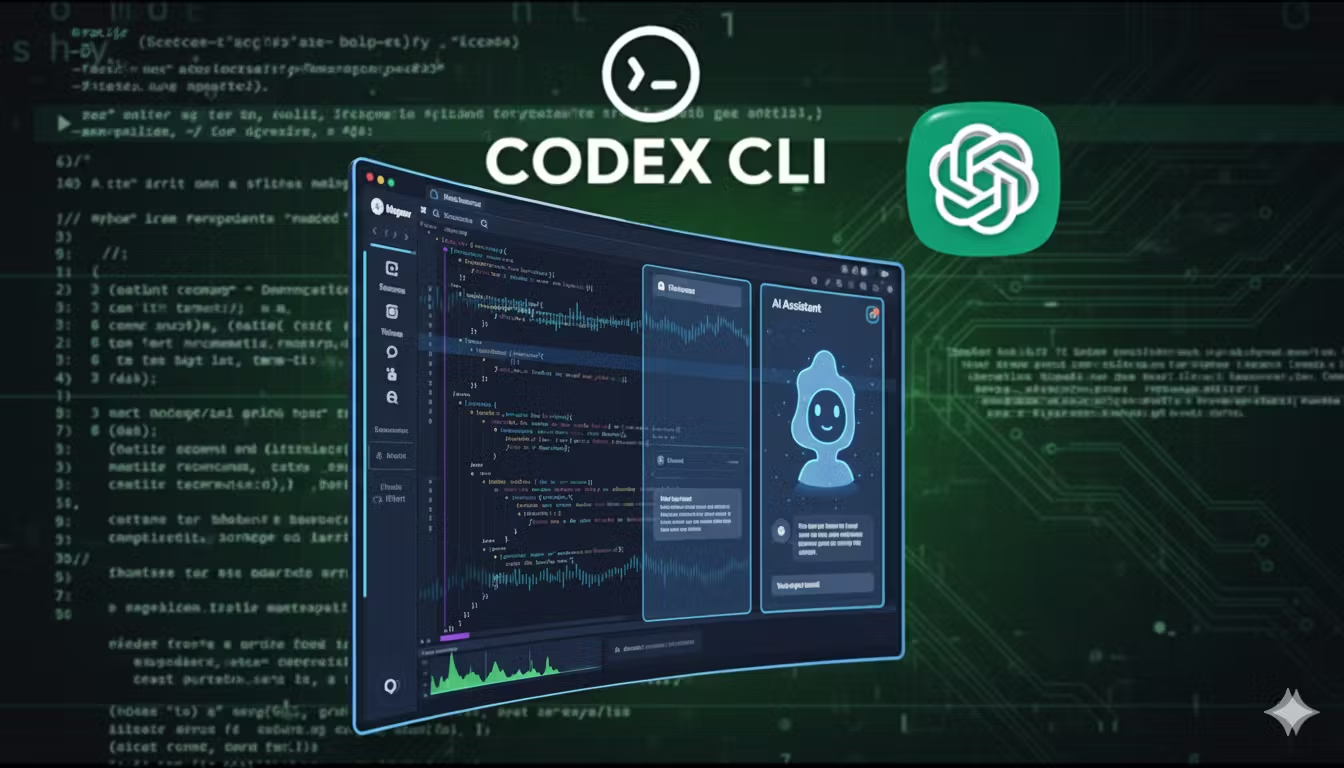
Transform your coding workflow with AI-powered assistance directly in Visual Studio Code
Table of Contents
Introduction to OpenAI Codex
In 2025, AI-powered development tools have become essential for modern programmers. OpenAI's Codex Agent represents the cutting edge of this technology, offering developers an intelligent coding companion that can understand context, generate code, fix bugs, and explain complex programming concepts.
Codex is more than just a code completion tool—it's a sophisticated AI agent that can read, modify, and run code across multiple programming languages. Whether you're a beginner learning to code or an experienced developer working on complex projects, Codex can significantly accelerate your workflow.
What is OpenAI Codex Agent?
OpenAI Codex is an AI-powered software engineering agent built on advanced language models. It functions as a cloud-based assistant that can handle multiple coding tasks simultaneously, from writing features and answering codebase questions to fixing bugs and proposing pull requests for review.
The Codex Agent integrates directly into your development environment, providing real-time assistance without disrupting your workflow. It supports multimodal inputs, allowing you to pass text, screenshots, or diagrams to generate or edit code accordingly.
Key Features of Codex Agent
Intelligent Code Generation
Codex can generate entire functions, classes, or even complete applications based on natural language descriptions. Simply describe what you want to build, and watch as Codex creates professional-quality code.
Code Understanding & Analysis
The agent can analyze existing codebases, explain complex algorithms, and provide insights into code structure and functionality. This feature is invaluable when working with unfamiliar code or large projects.
Automated Bug Detection
Codex excels at identifying potential issues, suggesting fixes, and even implementing solutions. It can catch common programming errors before they become problematic.
Multi-Language Support
From Python and JavaScript to Go and Rust, Codex supports dozens of programming languages, making it versatile for any development stack.
Watch the Complete Tutorial
Prerequisites
Before You Begin:
- Visual Studio Code: Latest version installed
- OpenAI Subscription: ChatGPT Plus, Team, Pro, or Enterprise account
- Internet Connection: Stable connection for cloud features
- Node.js: Version 16 or higher (for CLI installation)
Installation Methods
Method 1: VS Code Extension (Recommended)
1Open VS Code Extensions:
Launch Visual Studio Code and navigate to the Extensions view by clicking the extensions icon in the left sidebar or pressing Ctrl+Shift+X (Windows/Linux) or Cmd+Shift+X (Mac).
2Search for Codex:
In the search bar, type "OpenAI Codex" or "ChatGPT" to find the official extension. Look for the extension published by OpenAI with the verified badge.
3Install the Extension:
Click the "Install" button next to the OpenAI Codex extension. The installation process will begin automatically and complete within a few seconds.
4Authenticate Your Account:
After installation, you'll be prompted to sign in with your OpenAI account. Make sure you have an active subscription to access Codex features.
Method 2: CLI Installation
For developers who prefer command-line tools, OpenAI also offers a CLI version of Codex:
Configuration and Setup
API Key Configuration
Once installed, you'll need to configure your API access:
1Access Settings:
Open VS Code settings by pressing Ctrl+, (Windows/Linux) or Cmd+, (Mac), then search for "OpenAI" or "Codex" in the settings search bar.
2Configure Preferences:
Adjust settings such as suggestion frequency, auto-completion behavior, and model preferences according to your workflow needs.
How to Use Codex Agent
Chat Interface
The primary way to interact with Codex is through the chat interface. Simply open the Codex panel and start typing your questions or requests in natural language. The AI will respond with code suggestions, explanations, or solutions.
Inline Code Editing
Codex can modify your existing code directly. Select a code block, right-click, and choose "Ask Codex" to request improvements, bug fixes, or functionality additions.
Code Generation
Describe the function or feature you need, and Codex will generate complete, working code. For example, you might ask: "Create a function that validates email addresses using regex" and receive a fully functional implementation.
Advanced Features
Multi-Agent Deployment
For complex projects, you can deploy multiple Codex agents to work on different aspects simultaneously. This feature is particularly useful for large-scale applications where different agents can handle frontend, backend, testing, and documentation tasks.
Multimodal Input
Codex supports various input types including text descriptions, screenshots of UI mockups, and architectural diagrams. This makes it easier to communicate complex requirements to the AI.
Rich Approval Workflow
Codex offers three levels of interaction:
- Automatic: Let Codex make changes without approval
- Review: Review and approve changes before implementation
- Manual: Generate suggestions that you implement manually
Tips and Best Practices
Be Specific and Clear
The more detailed your requests, the better Codex can assist you. Include context about your project, preferred coding style, and specific requirements.
Use Context Effectively
Codex understands the context of your current file and project. Reference existing functions, variables, and patterns to get more relevant suggestions.
Review Generated Code
Always review and test AI-generated code before deploying to production. While Codex is highly accurate, human oversight remains essential for critical applications.
Common Issues and Solutions
Extension Not Loading
If the Codex extension fails to load, try restarting VS Code, checking your internet connection, and verifying your OpenAI subscription status. Ensure you're using the latest version of both VS Code and the extension.
Authentication Problems
Authentication issues often stem from expired sessions or subscription problems. Sign out and sign back into your OpenAI account, and verify your subscription is active and includes Codex access.
Slow Response Times
If Codex responses are slow, check your internet connection and consider switching to a different model or reducing the complexity of your requests during peak usage times.
Conclusion
OpenAI's Codex Agent represents a significant leap forward in AI-assisted development. By following this comprehensive guide, you now have the knowledge to install, configure, and effectively use Codex in your VS Code environment.
The integration of AI into development workflows is no longer futuristic—it's here, and it's transforming how we write, debug, and maintain code. Whether you're building your first application or working on enterprise-level software, Codex can help you work faster, smarter, and more efficiently.
Remember to explore the advanced features as you become more comfortable with the tool, and don't hesitate to experiment with different approaches to find what works best for your development style.